Don Lee Builders Inc.

Every site.
In your pocket.

Drawings, punch lists, daily reports, RFIs and submittals. One app for the whole team.
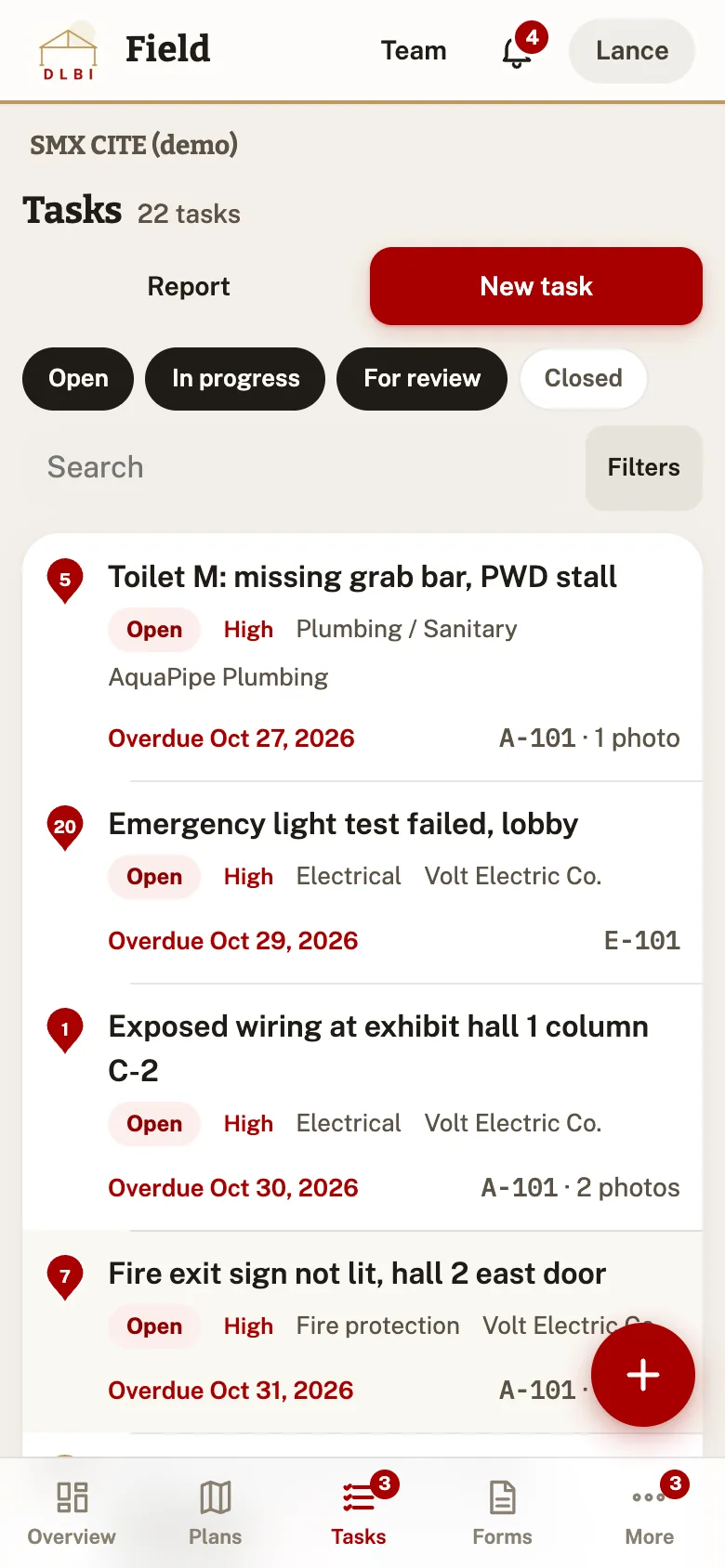
Task list
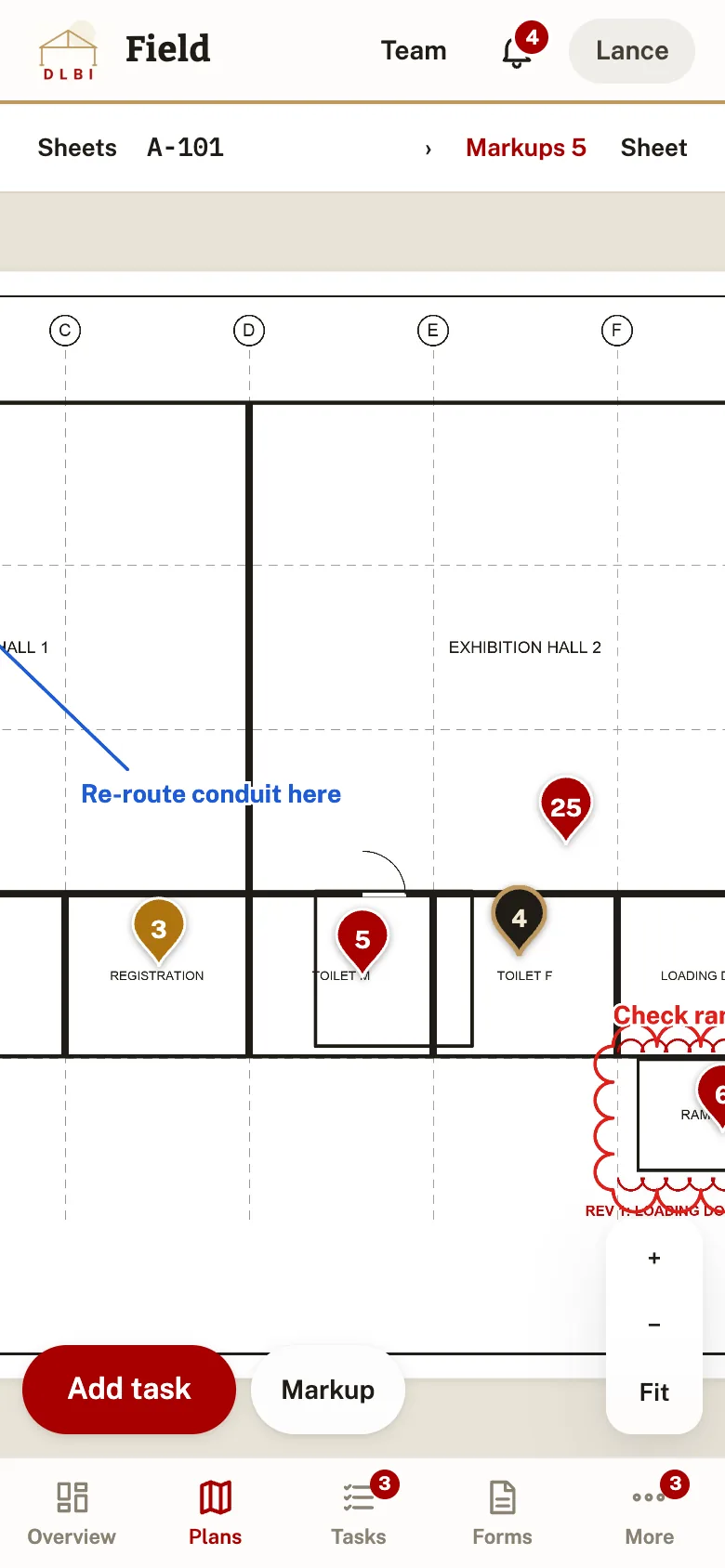
A plan with task pins
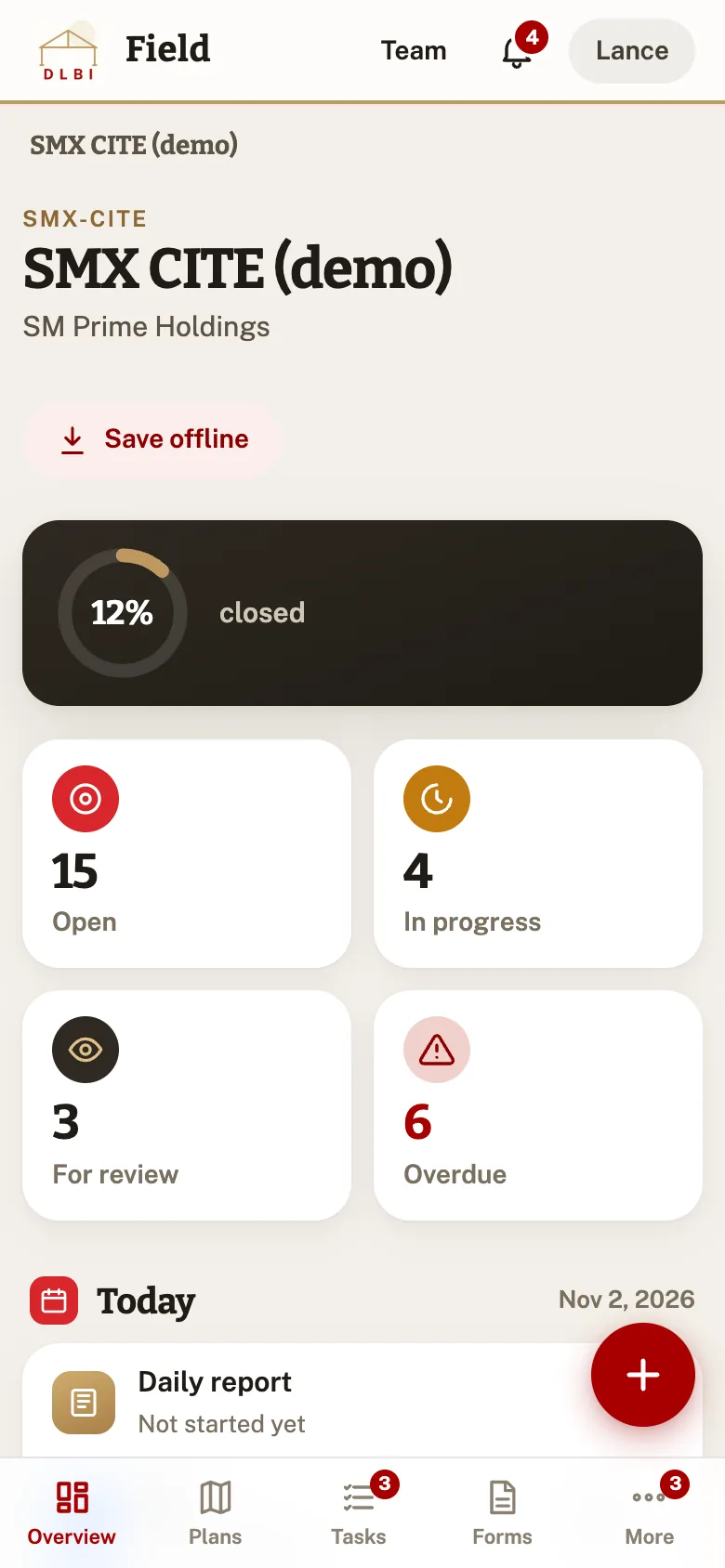
Project overview
No signalKeeps working. Syncs later.
On the planEvery task has a pin.
No accountsSubs use a private link.
7:00 AMWhat is due, every morning.
Get started

Three steps.
Then you are on site.

01

Sign in with Google

Open dlbifield.stratagemlabs.dev and use the Google account your admin added.

02

Add to home screen

iPhone: Safari, Share, Add to Home Screen. Android: Chrome menu, Install app.

03

Open your project

Your projects are on the first screen. Managers see a short checklist until a new project is ready.

Plans

Your drawings, on site.

Upload the PDF set once. Every sheet is ready on every phone, even with no signal.

  • Sheet numbers read for you. A-101, S-201 come straight from the title block.
  • New revisions, same pins. Upload the same number and compare versions with a slider.
  • Pinch, zoom, swipe from sheet to sheet.
How it works
  1. Plans tab, Upload plans. Pick PDF sets or images. A computer is easiest for big sets.
  2. Check the sheet numbers in the list, add titles, Upload.
  3. Open a sheet. Sheet menu: versions, compare, show closed tasks, rename, archive.

Pin colours: red Open, amber In progress, black For review, green Closed.
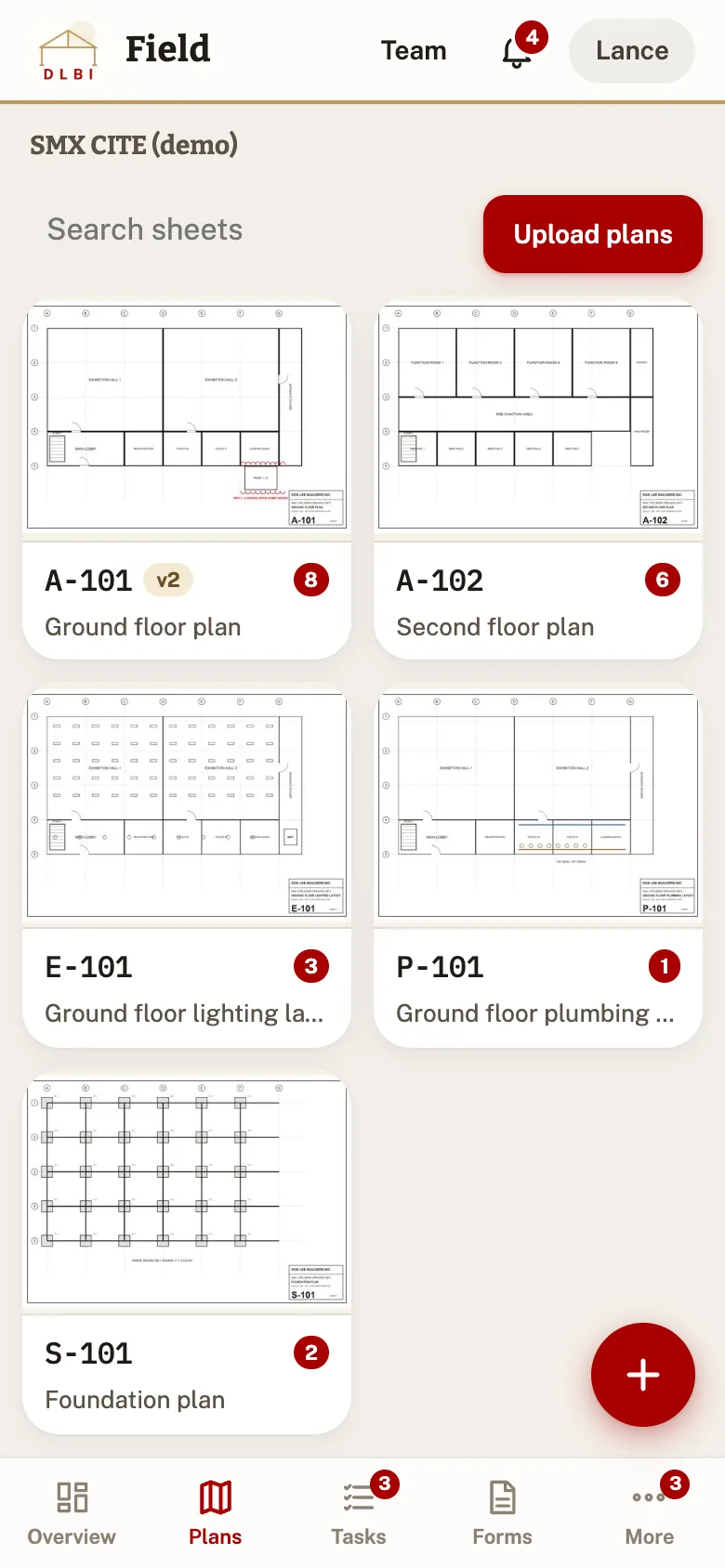
Sheet list
Tasks

Tap the plan.
Log the problem.

Exactly where it is, with a photo, the trade and who fixes it. Done in seconds on a walk.
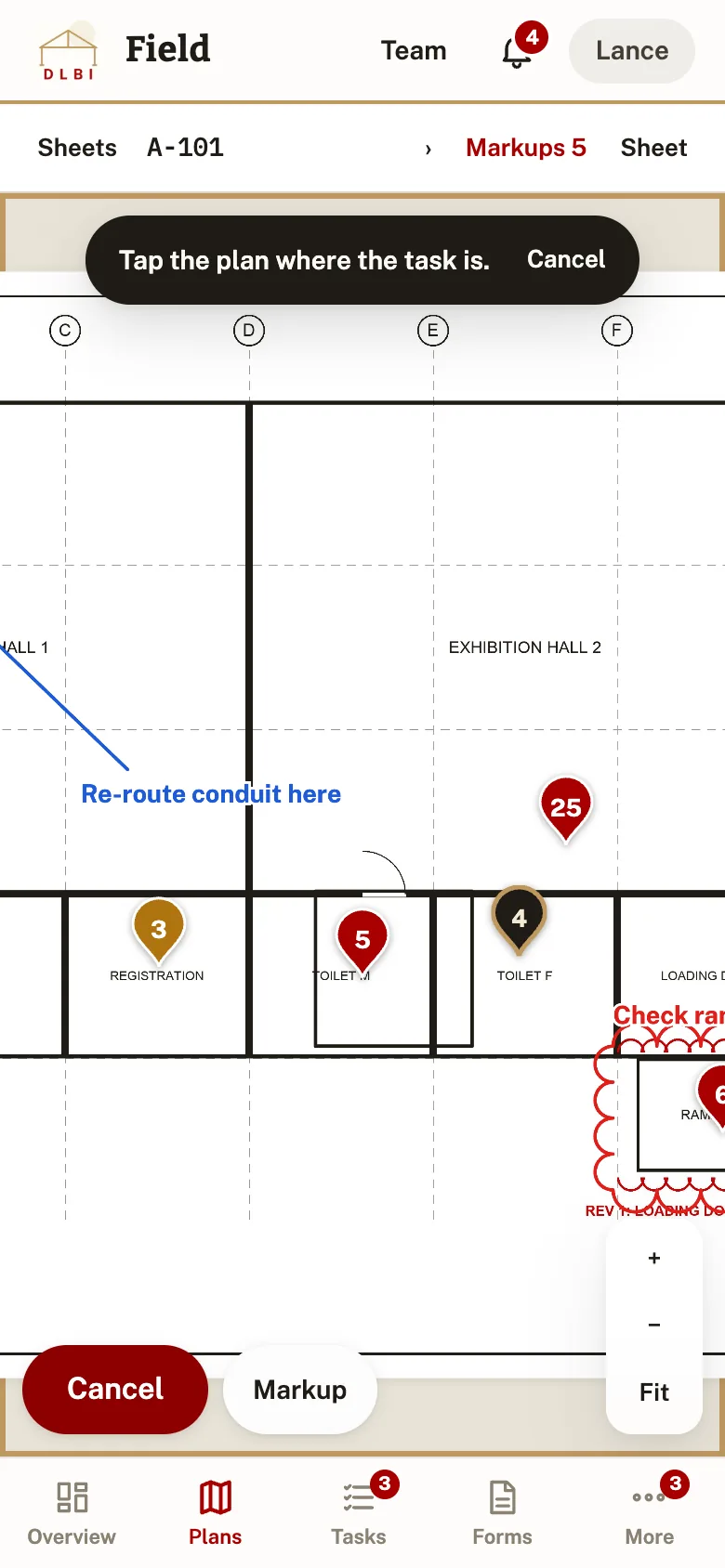
Tap the plan where the task is
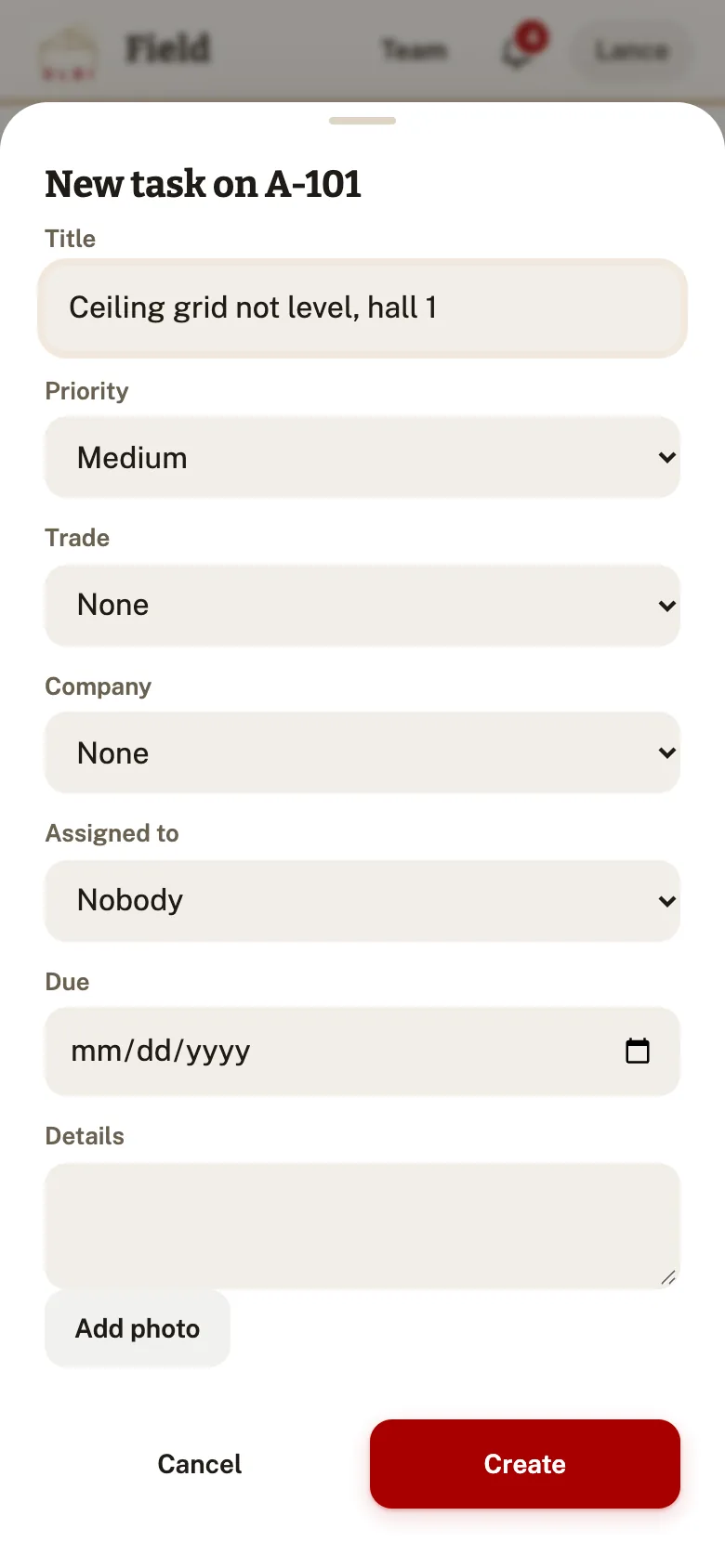
New task form
How it works
  1. Open a sheet and tap Add task.
  2. Tap the exact spot. Write what needs doing.
  3. Set priority, trade, company, person and due date. Add photos. Create.
  4. On the task: change status, tick checklist items, comment, Move pin.

Photos are stamped with the project, task, time and your name. The Tasks tab filters by status, company, person, trade, sheet or overdue. The trade you used last carries to the next pin.

Review

Nothing closes
until you say so.

Fixes come back with photos. A manager approves or sends them back with a note.
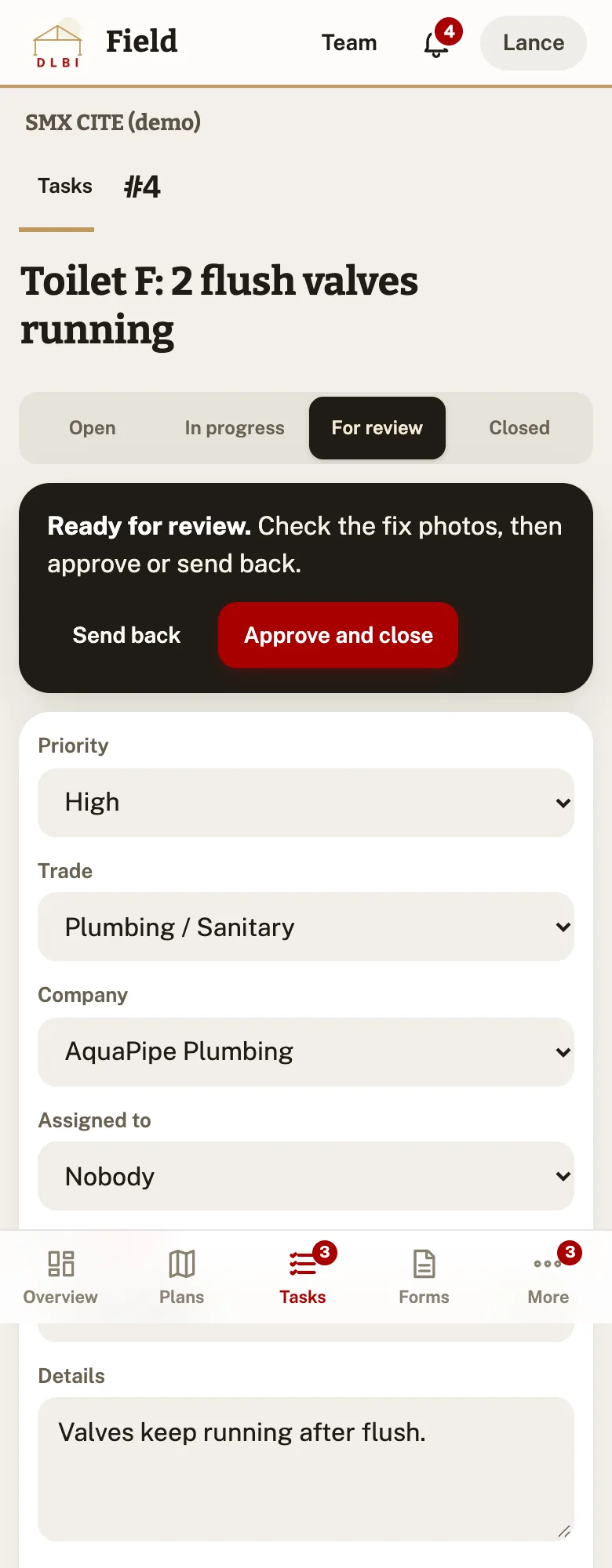
Open→In progress→For review→Closed
  • Approve and close when the fix photos look right.
  • Send back with what is still wrong. It returns to Open, and the sub sees your note.
  • Only managers close. Members move work up to For review.
A task waiting for review
Markups

Mark it up. Right on the sheet.

Clouds, arrows, boxes and notes, seen by the whole team.

  • Six tools, four colours. Pen, arrow, line, box, revision cloud, text.
  • One finger draws, two fingers zoom.
  • Stays put when a new sheet version comes in.
How it works
  1. Open a sheet, tap Markup.
  2. Pick a tool and colour, draw. Text asks what to write.
  3. Undo removes your last one. The eraser removes yours; managers can remove any. Done.

Markups at the top of the sheet shows or hides them.
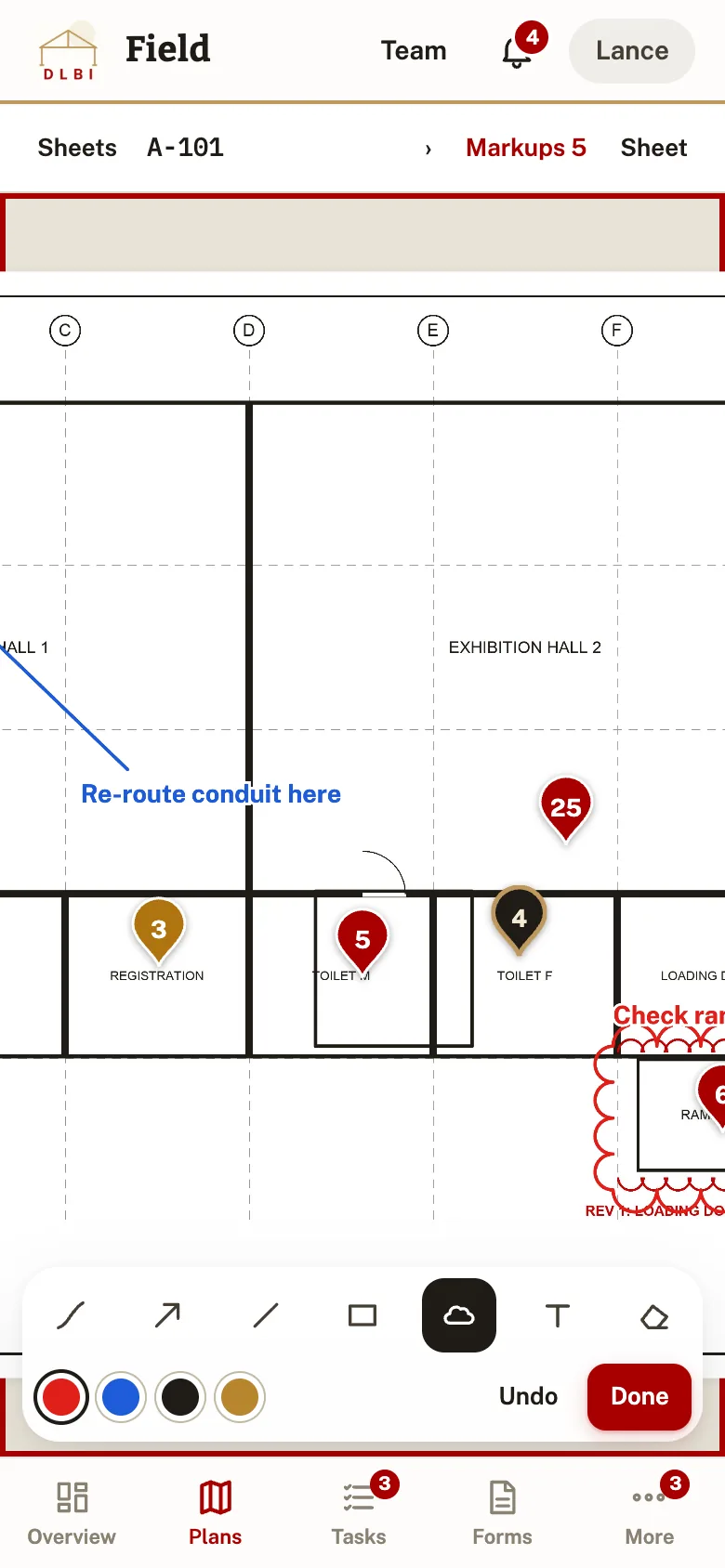
Markup tools
Daily reports and inspections

The day, on record.
In minutes.

Weather, crews, work done and photos. Checklists that turn failures into tasks.

Daily report

Yesterday's crew list is copied in, so you only change the numbers. It saves as you type. Submit at the end of the day.
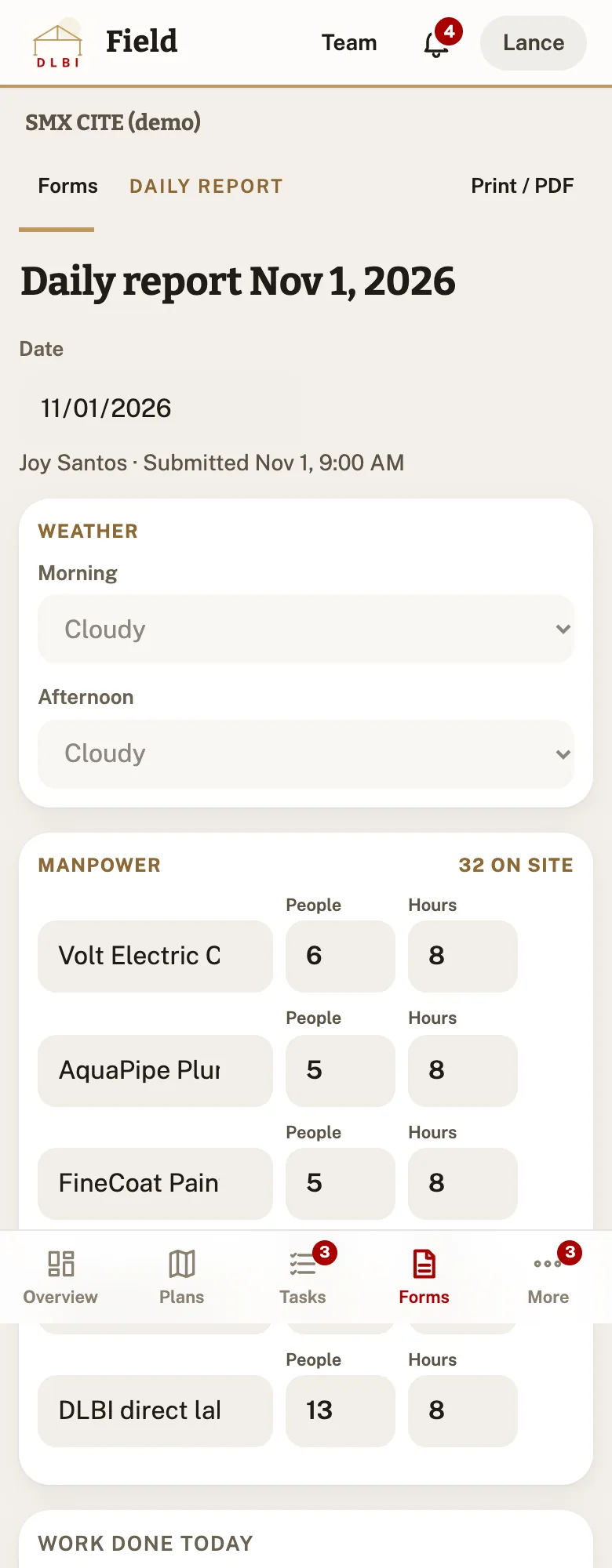
How it works
  1. Forms tab, Today's daily report.
  2. Weather, people and hours per company, work, equipment, deliveries, delays, visitors, photos.
  3. Submit. It locks; a manager can reopen. Print / PDF anytime.
Daily report

Inspection

Pass, Fail or N/A for each item. A failed item takes a note and photos, and becomes a task in one tap.

How it works
  1. New inspection, pick a checklist, say where.
  2. Mark each item. On a fail, add a note and photos, then Make a task.
  3. Submit. Managers are notified about failed items.

Managers keep checklists under Checklists. Starters: Pre-pour, Safety walk, Turnover.
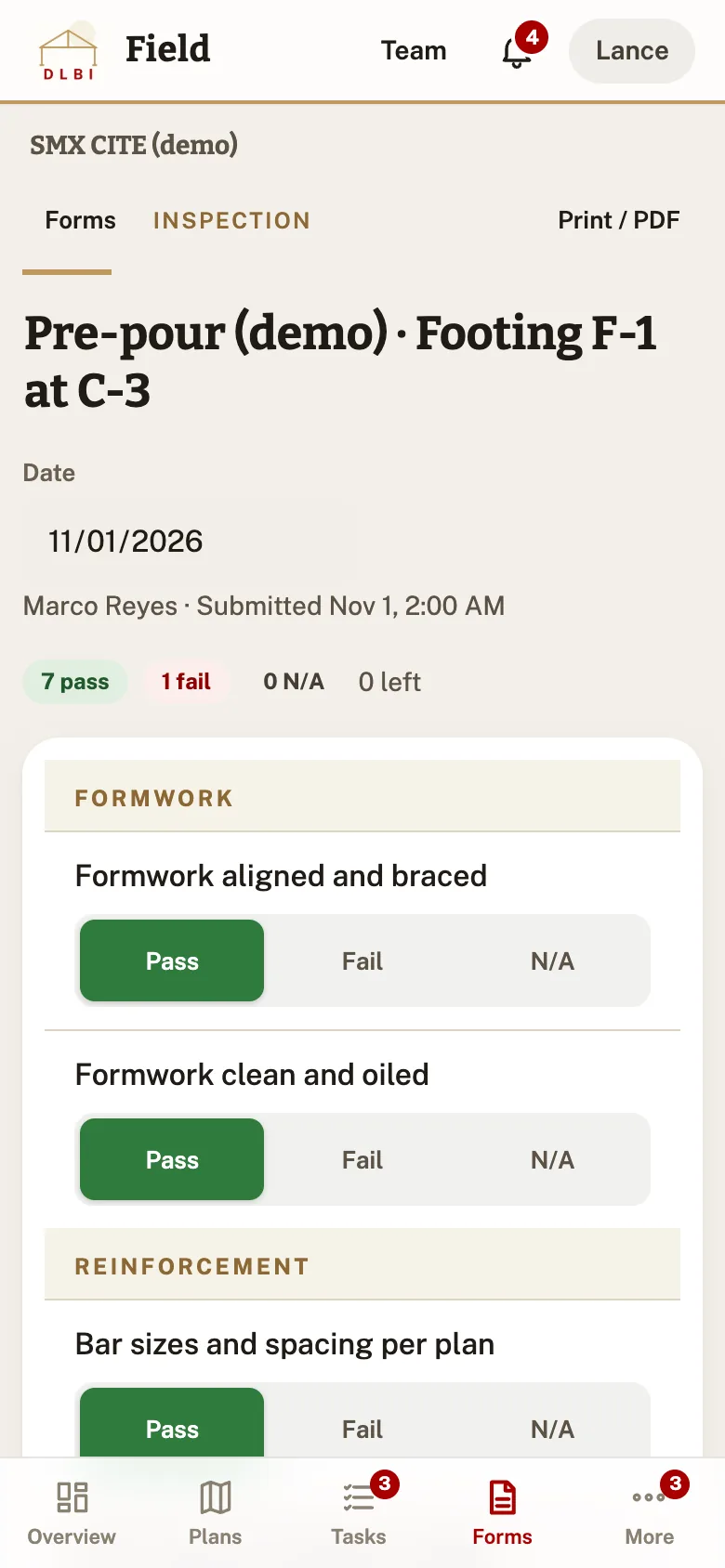
Inspection
RFIs and submittals

Questions answered.
Drawings approved.

Every answer and every decision, kept on record with the files.

RFIs

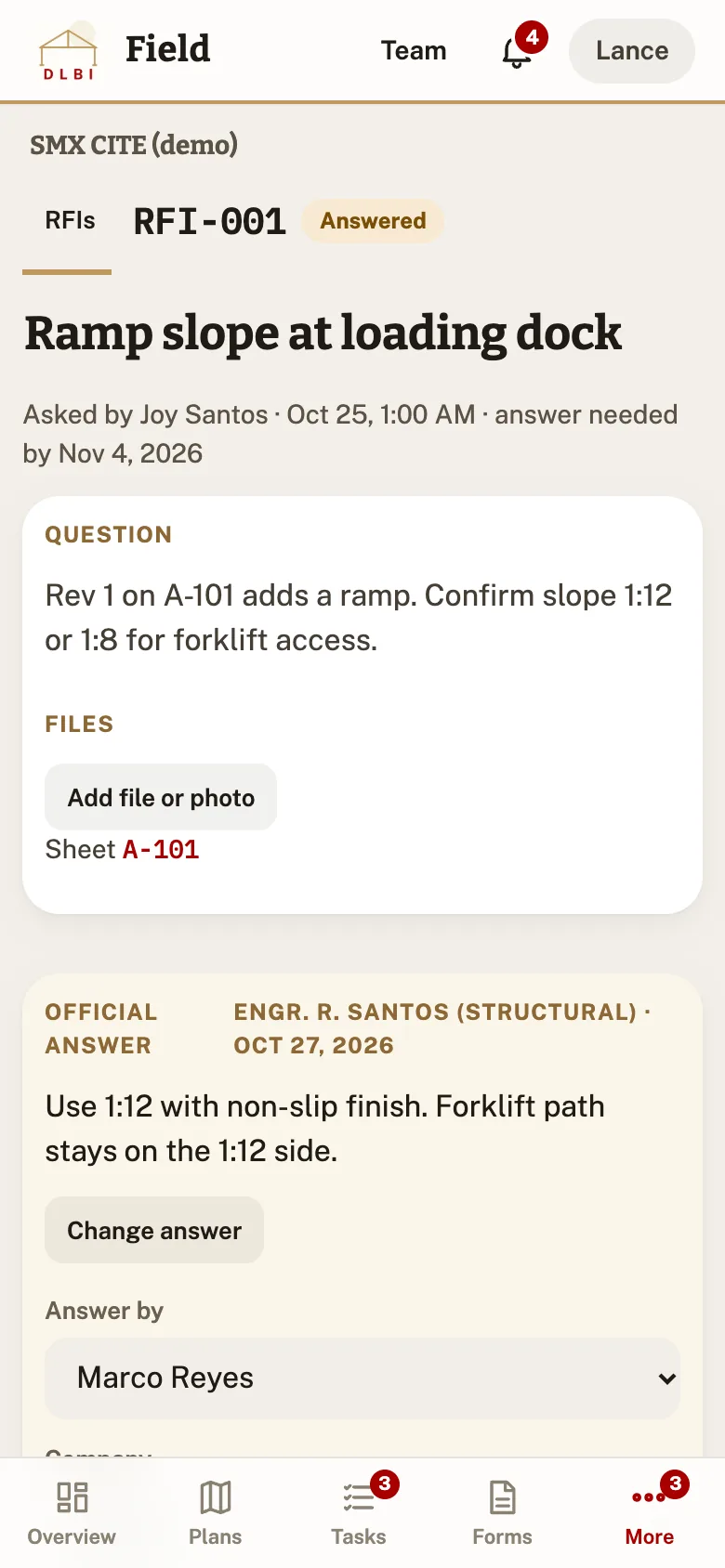
Ask the architect, engineer or a sub. The answer is marked as the official answer, with a date and a name.
How it works
  1. More, RFIs, New RFI: subject, question, who answers, date needed.
  2. They get a notification. A sub company answers from its private link.
  3. A manager closes it when settled. Numbers run RFI-001, RFI-002.
An answered RFI

Submittals

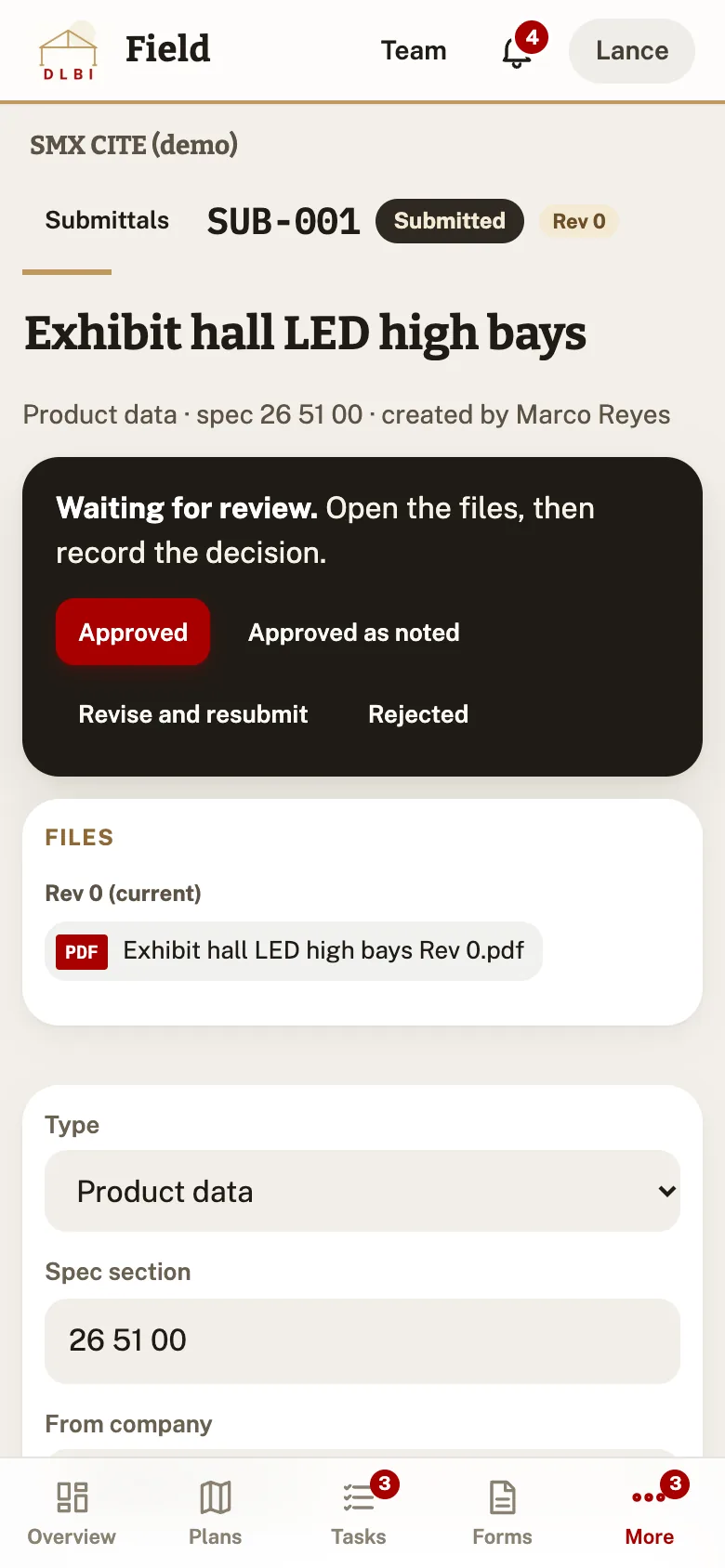
Shop drawings, product data and samples, reviewed revision by revision.
How it works
  1. More, Submittals, New submittal: title, type, spec section, company, reviewer.
  2. The sub uploads files from its link and submits.
  3. Decide: Approved, Approved as noted, Revise and resubmit, or Rejected. Resubmissions become Rev 1, Rev 2.
A submittal waiting for review
Notifications

Know what needs you.

A note when work is assigned, fixed, sent back or answered. A summary every morning at 7:00.
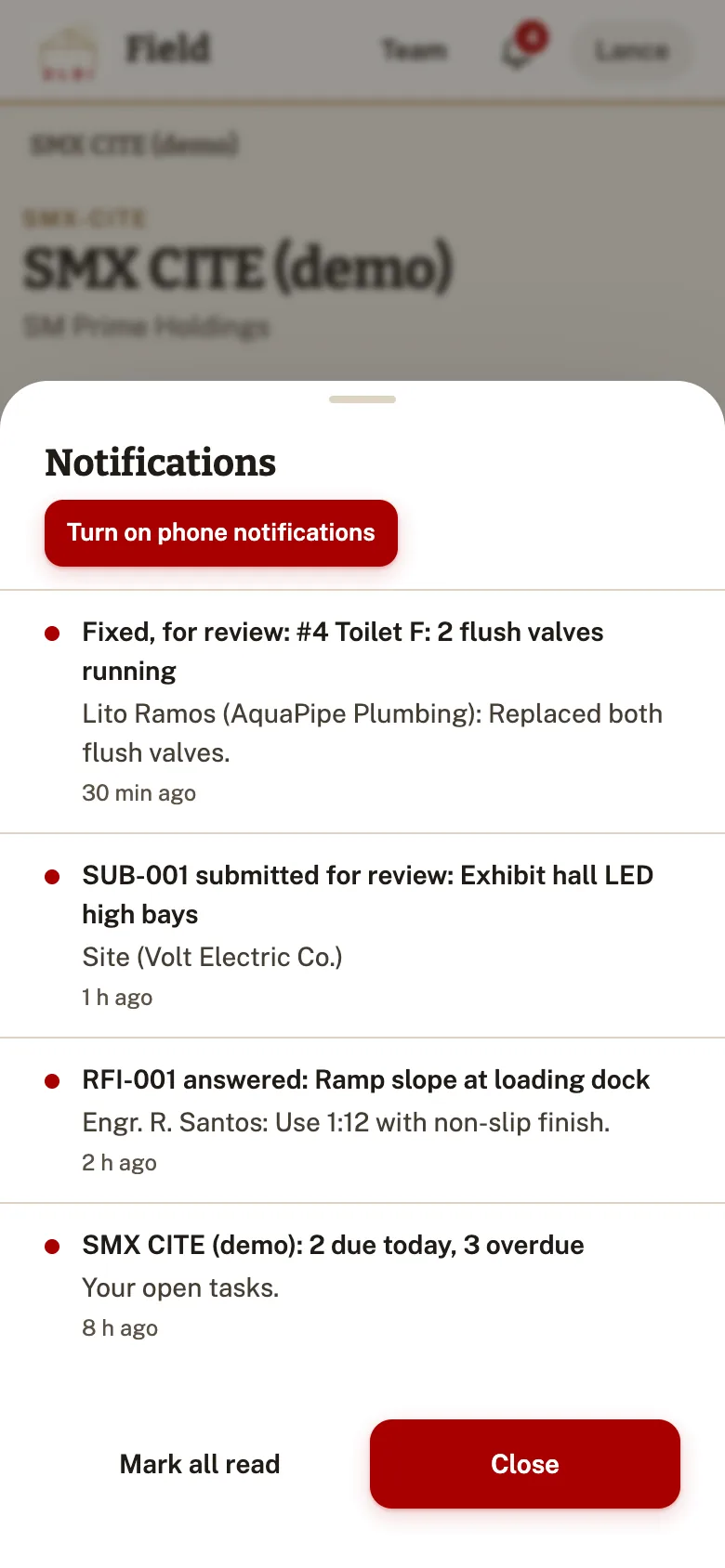
  • The bell keeps every note, with a red count.
  • Lock screen alerts after one tap: Turn on phone notifications.
  • On iPhone, add DLBI Field to the home screen first.
Notifications
Offline

No signal?
Keep working.

Basements and new floors are fine. Everything you add waits on the phone and goes out when the signal comes back.

Saved firston the phone, shown at once
Sent in orderwhen back online
Save for offlinekeeps every sheet and photo
3 waitingshown in the top bar

Before signing out, wait until nothing is waiting. Signing out deletes changes that were not sent.

For subcontractors

No account.
Just a link.

Each company gets a private link for each project. It opens on any phone.

  • See your tasks with the spot on the plan and photos.
  • Mark fixed with your name, what was done and a photo of the fix.
  • Answer RFIs and send submittals from the same page.
Send this to your subs
  1. Open the link from Don Lee Builders. Your open tasks are listed.
  2. When a task is fixed: Mark fixed, your name, what was done, a photo of the fix.
  3. The site team checks it. It is closed, or sent back with what is still needed.
  4. Questions for you: Answer. Submittals: Upload and submit your PDF or photos.

Keep the link private. Anyone with it sees your company's items on this project. Share this page: dlbiguide.stratagemlabs.dev/#subs

Managers: project Settings, Link next to a company to copy it or show a QR code. Reset link stops the old one.
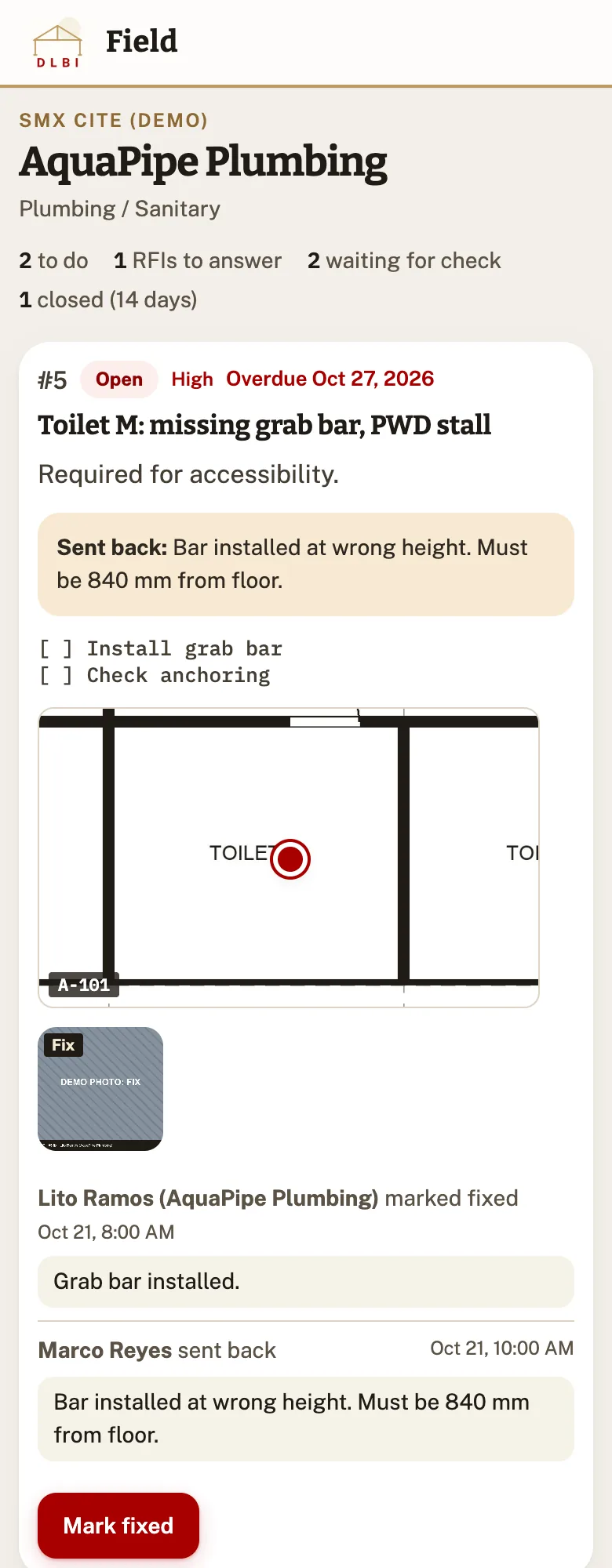
Subcontractor page
On a computer

And on the big screen.

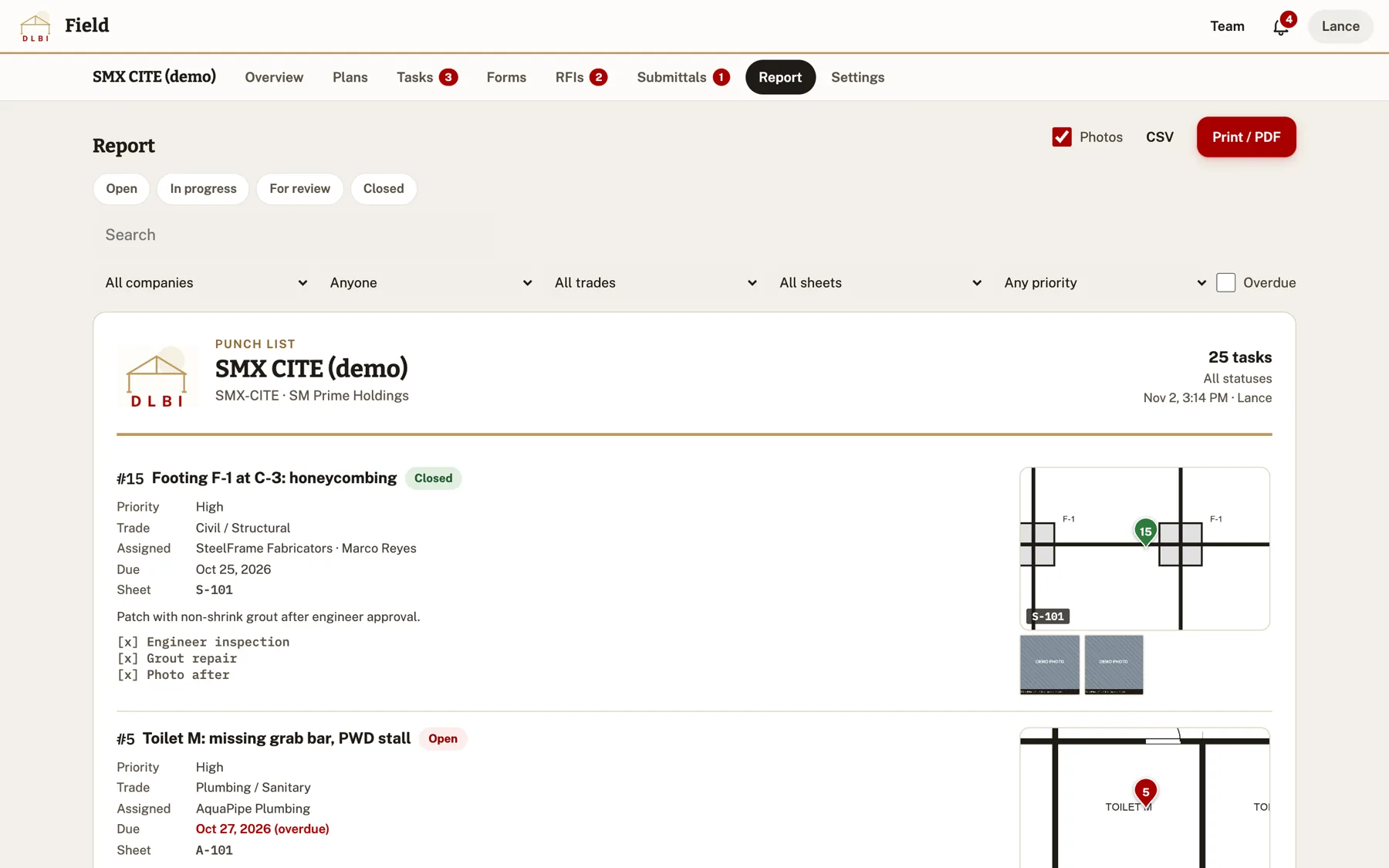
Plans beside the task. Punch lists to print or send as PDF and Excel.
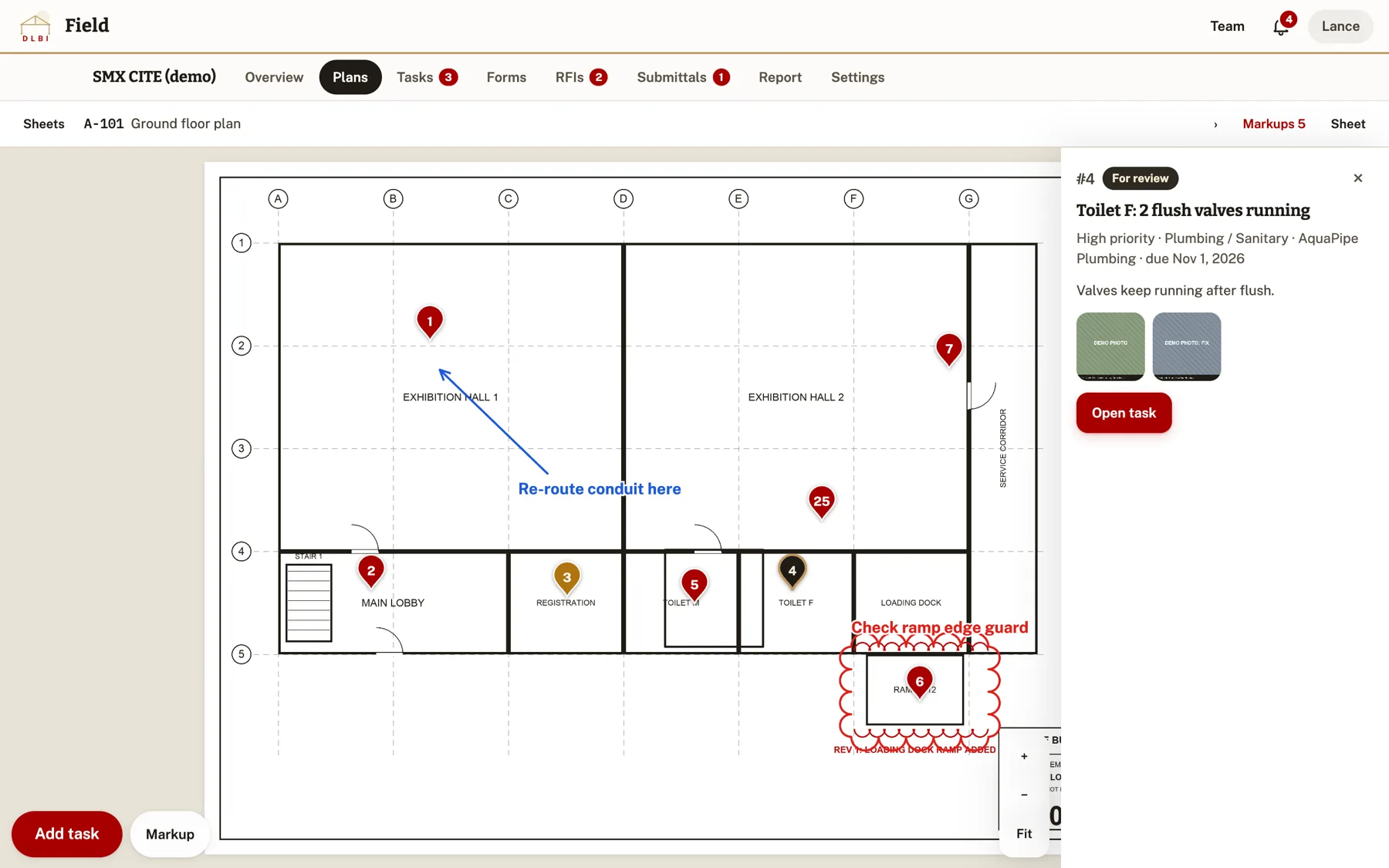
Plan with a task open beside it
Punch list report
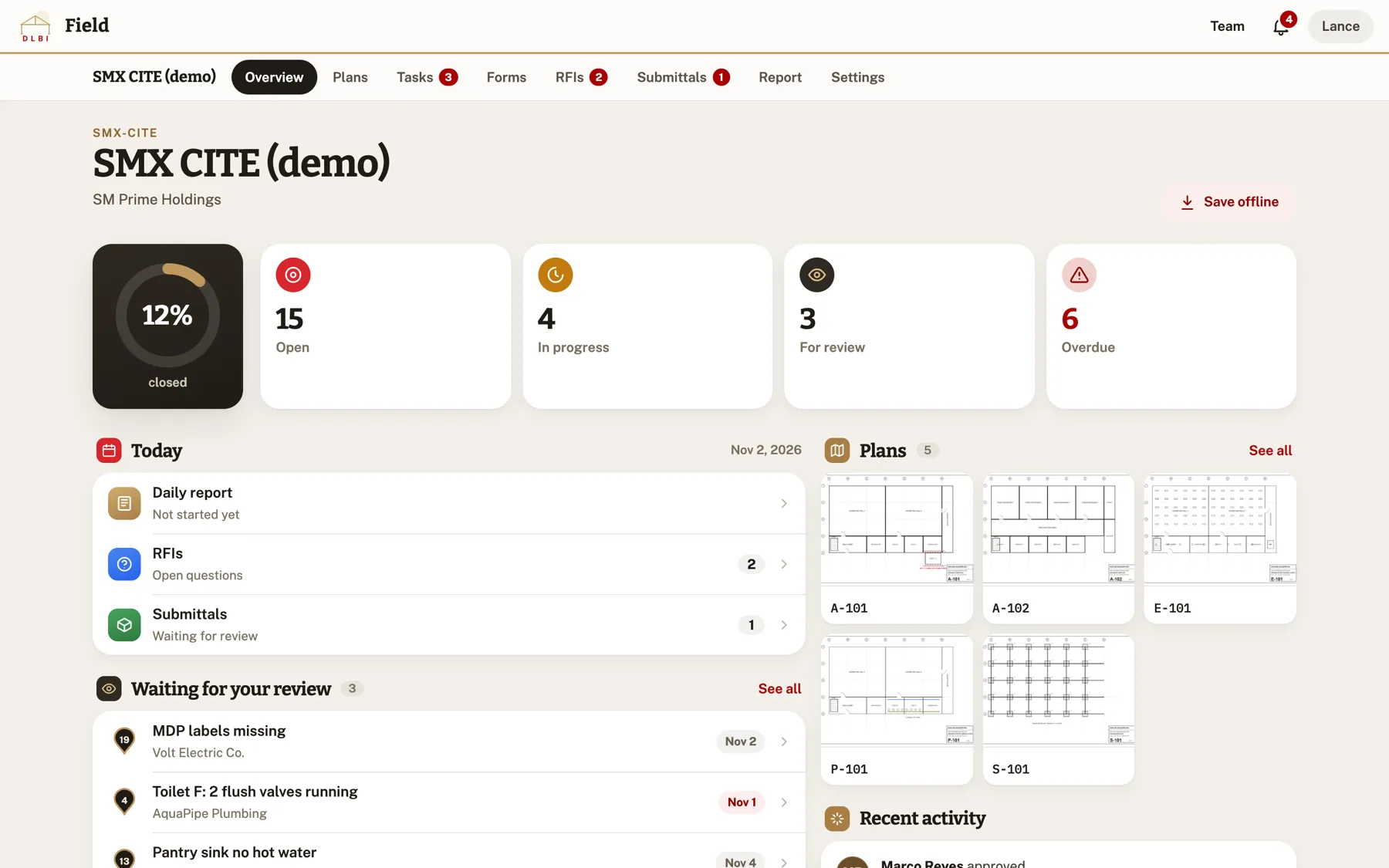
Project overview
Team

The right access
for every role.

Admins add people by their Google email. They sign in, and their name comes from Google.

AdminManagerMemberViewer
See plans, tasks, forms
Add tasks, photos, markups, reports, RFIs
Close tasks, decide submittals
Upload plans, add subs, new projects
Add people, change roles
Add someone
  1. Team in the top bar, Add person: Google email and role.
  2. Send them the app link. They sign in with Google.
  3. Add them to projects in each project's Settings.

Remove signs a person out everywhere within a minute; their work stays. Unlink Google is for someone who changed Google accounts.

Questions

Good to know.

It says I am not on the team.

An Admin needs to add your Google email on Team. Sign in with that same Google account.

I worked with no signal. Is it saved?

Yes, on the phone. It goes out when you are back online. The top bar shows how many changes are waiting.

New drawings came in. Will the pins move?

Upload with the same sheet number. It becomes a new version, and pins and markups stay where they are. Use Compare to see what changed.

A sheet number was read wrong.

Fix it in the list before uploading. Later: open the sheet, Sheet menu, Edit number and title.

Why did a subcontractor's fix not close the task?

Fixes come in as For review, so someone from DLBI checks the photos first.

I do not get phone notifications.

Open the bell and tap Turn on phone notifications. On iPhone, open DLBI Field from the home screen icon first, and check the phone allows notifications for it.

What is "SMX CITE (demo)"?

Sample data to try every feature. The people in it are made up. It will be removed before going live.

Open DLBI Field